


FAX App: Send Faxes from Phone
4.55.63K Reviews
App Specs
- Version
- 3.28.0
- Updated On
- License
- Free
- Downloads
- 1,000,000+
- Developer
- Municorn
- Categories
- Business
- Platform
- Android, iOS
Screenshots
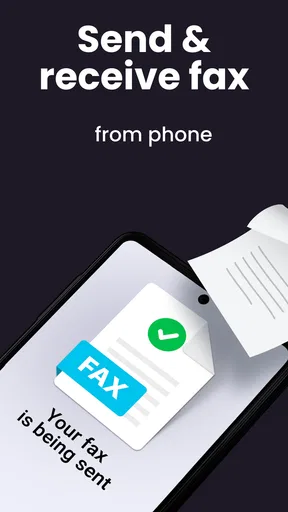
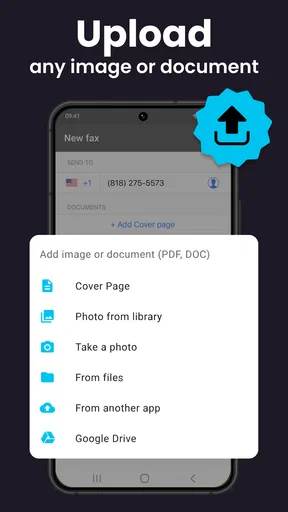
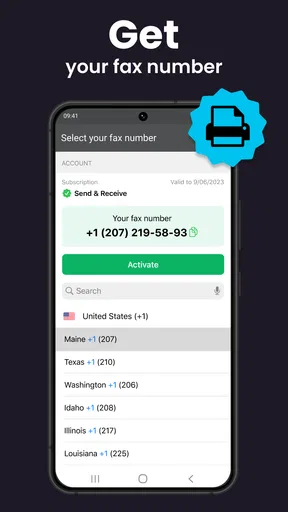

 Analysis by AppCompare
I find a phone fax app most useful when a fax is an occasional, awkward errand rather than part of a daily office routine. FAX App: Send Faxes from Phone is built around that practical need: preparing a document on Android and sending it without finding a physical machine. It is a free business app from Municorn, rated 4.5 on average across around 62,000 ratings, with over a million installs. That scale suggests it has become a familiar option, but what matters most to me is whether its phone-first workflow fits the job I actually have in front of me.
A sensible fit for occasional paperwork
I would consider it for a signed form, a document requested by an office that still relies on fax, or a page I need to send while away from home. It is especially convenient when the file is already on my phone: instead of printing it, locating a fax machine, and handling the pages there, I can work from the document I have. The app is intended for everyone, and its current version is 3.27.0; it requires Android 8.0 or later.
That does not make mobile faxing the right answer to every document problem. If the recipient accepts email, a secure upload portal, or an electronic signature workflow, those options may be simpler and easier to track. I would use fax when the recipient specifically asks for it, not assume that fax is automatically the best way to share sensitive paperwork.
Before sending, make the file easy to read
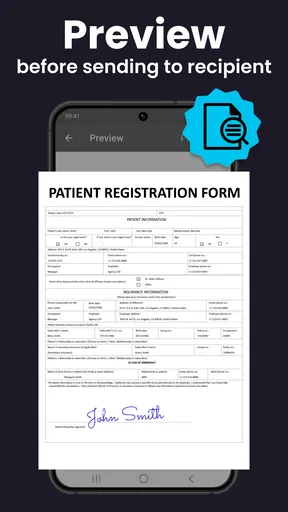
The quality of a fax depends partly on the source document, so I would inspect the file before sending rather than trust a tiny phone preview. Check that all pages are present, the text is upright, and signatures or small print are legible when viewed at a useful size. A clean PDF is usually easier to review than a collection of loosely ordered images, particularly when a form has multiple pages.
For a paper original, a careful capture matters more than rushing through the process. Keep the page flat, avoid shadows, and check that the edges and important text are visible. If the document contains several pages, confirm their order before sending. These small checks can prevent the frustrating situation of paying to transmit a file that the recipient cannot use.
Build a repeatable sending habit
For recurring tasks, I would make a short checklist: confirm the destination number, select the final version of the document, review every page, and keep the sent status or confirmation with the related paperwork. This is not a special feature; it is a good habit for any fax service. It is particularly helpful when a form is time-sensitive or when a second attempt would mean repeating the whole process.
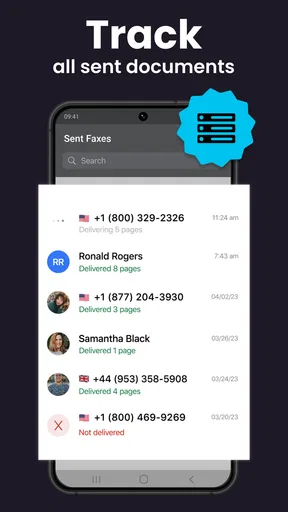
I would also avoid leaving several near-identical drafts in the phone’s file picker. Clear names such as “signed form” or “final copy” make it easier to choose the right document when working quickly. If the app lets me see the fax history, I can use it as a practical record of what I sent, while still keeping my own copy somewhere I can find it later.
Worth Reading Before You Choose

Baby Panda World Brings Quick Play to Modern Phones, but Its Game Library Feels Busy

ESPN’s Live Game View Makes Following Close Games Easier

QuizzLand Review: A Good Fit for Short Trivia Breaks, Not Every Player

Basketball Stars: Multiplayer Is Fast, but Can It Recover When Matches Go Wrong?

WEBTOON Turns Phone Updates Into a Better Reading Routine

Link to Windows Runs on Shared Habits, Not Social Feeds
What I would compare before relying on it
Compared with a traditional fax machine, a phone app saves the trip and the need to handle paper at a machine, but it depends on having the right digital file and a usable phone workflow. Compared with email, fax may suit recipients who specifically require a faxed document, while email is often more convenient when both sides accept electronic files. A dedicated office fax service can be a better fit for steady, high-volume work where several people need a shared process.
The app’s store summary describes sending and receiving mobile PDF documents, while its short description identifies it as a fax app. I would still approach each job by checking what the recipient needs and what the app currently offers on my device. A one-off personal form is a different task from managing confidential records across a team, and the latter calls for a carefully reviewed business process rather than simply installing a mobile app.
Cost is another practical question. The app is free to install, with in-app purchases listed from $5.99 to $99.99 per item. I would check the purchase details in the app before committing, especially if I only expect to send one fax. Occasional users should compare the cost of the specific task with a local service or another accepted submission method; people who fax repeatedly may value the convenience more.
Privacy deserves the same attention as price. Before sending medical, financial, or identity documents, I would confirm the recipient’s number through a trusted source and make sure the document is meant for that recipient. A secure connection during transmission does not remove the need to verify the destination or follow workplace rules for handling sensitive files. For especially confidential material, I would use whichever channel the responsible organization explicitly approves.
Using the app with fewer surprises
I use this section to focus on the small checks that make a phone-based fax workflow more dependable: choosing the right copy, reviewing the destination, and keeping a clear record of the result. Those habits matter most when paperwork is urgent or sensitive, and they also help me decide when a different submission method would be a better fit.
The first run and the basic workflow
The first thing you'll notice is how easy it is to get started with the FAX App. Downloading it from the App Store or Google Play is a breeze, and the installation is straightforward. Once installed, you’re greeted with a clean and intuitive interface that's designed to get you faxing in no time. No complicated menus or unnecessary clutter—just what you need, when you need it.
In practice, I would treat the first send as a small test of my own workflow: locate the right file, confirm the destination, check the pages, and then follow the status until the app indicates what happened. That deliberate first attempt helps me learn where each step sits without risking a last-minute rush on a more important document. I would keep the original file available until I know the transmission has gone through as expected.
User Interface and Experience
The user interface is minimalistic, which I absolutely love. Everything is clearly labeled and easy to navigate. You can quickly access your fax history, add new faxes, and check the status of sent faxes. The app also allows you to easily import documents from your phone’s storage or cloud services like Google Drive and Dropbox. This feature is incredibly handy, especially if you’re always on the go.
Having documents in cloud storage can make a real difference when a form arrives on one device and needs to be sent from another. My useful habit would be to open the intended file from its known location, rather than choose a similarly named copy from a crowded downloads folder. After importing, I would inspect the pages in the fax workflow itself: an intact source file does not guarantee that the selected version or page order is correct.
Features That Stand Out
Now, let's talk features. The FAX App offers a variety of options to customize your faxing experience. You can send faxes to over 90 countries worldwide, which is perfect for both personal and professional use. The app supports various file formats such as PDF, DOC, JPG, and more, making it versatile for different document types.
That flexibility is handy, but it also creates a choice worth making deliberately. If I have a document in several formats, I would select the version that preserves its layout and is easiest to check page by page. For a form with typed fields, a PDF is often a sensible final copy; a photo or image may be more suitable for a paper original that has not been digitized another way. I would not assume every source format will look identical after preparation for faxing.
One feature I found particularly useful is the ability to edit documents directly within the app. Need to sign a document before faxing? No problem. You can add your signature with a simple tap-and-drag motion. It’s like having a portable office right in your pocket.
For a signature, I would zoom in and place it carefully, then review the page at normal size to make sure it does not cover instructions, dates, or fields the recipient needs to read. A signature added on a phone can be convenient for a straightforward form, but it is not a substitute for a legally required signing method or an organization’s approved e-signature process. When the document has strict signing rules, I would follow those first.
Security and Privacy
In today’s digital age, security is a big concern. Thankfully, the FAX App takes this seriously. It uses secure connections to send your faxes, ensuring your documents are transmitted safely. Plus, the app complies with privacy standards, so you can rest easy knowing your information is protected.
I still treat secure transmission as one part of responsible handling, not a reason to skip basic checks. Verify the number, avoid sending a draft with unnecessary personal details, and keep track of the final copy. If I am sending paperwork on behalf of an employer or client, I would use the channel and retention practices that organization requires rather than make assumptions based on the app alone.
Performance and Reliability
During my testing, the app performed flawlessly. Faxes were sent quickly, and I received confirmations almost instantly. The reliability of the app is impressive, and I didn’t experience any crashes or glitches. The developers clearly prioritized performance, and it shows.
Even with a smooth run, I would not treat a sent status as proof that the intended person has reviewed the pages. For an important submission, check the status shown in the app and follow up with the recipient if the document is urgent or if the process requires confirmation. If a send appears delayed or unsuccessful, first recheck the number and source file; sending the same document repeatedly without checking could create duplicate copies at the other end.
Pricing and Value
Let’s talk about pricing, shall we? The app offers a free trial, which is a great way to test the waters. After that, you can choose from several subscription plans based on your needs. While some might balk at the idea of paying for a fax service, the convenience and features offered make it a worthwhile investment for those who frequently need to send faxes.
Because the app is free to download but has paid in-app items, I would read the current purchase screen carefully before starting a workflow that depends on sending. The listed item range is $5.99 to $99.99, so the right value judgment depends on what is being purchased and how often I expect to fax. I would not subscribe or buy anything on the assumption that every send is free; occasional users should decide whether the convenience justifies the specific charge they see.
Who will get the most from it
I think this is best for someone who needs a fax now and then, already keeps documents on a phone or cloud drive, and wants to avoid finding a machine. A self-employed person sending an occasional signed form, a traveler dealing with paperwork, or someone responding to an office that still accepts documents by fax can benefit from that compact workflow. Its broad file support and document editing are useful when the job is small enough to manage comfortably on a phone.
I would steer a team that sends many documents, needs shared oversight, or follows strict compliance procedures toward a dedicated business solution chosen for those requirements. I would also skip a phone fax app when the recipient offers a simpler approved portal or when I need extensive document preparation on a large screen. The convenience is real, but it does not turn a phone into a full document-management system.
Final Thoughts
Overall, the FAX App: Send Faxes from Phone is a solid choice for anyone looking to modernize their faxing experience. It’s easy to use, packed with useful features, and reliable. Whether you’re a business professional or just someone who occasionally needs to send a fax, this app has got you covered. So next time you find yourself in need of sending a fax, skip the old-school machine and give this app a try. You won’t be disappointed.
My practical recommendation is to keep it available if faxing is an occasional nuisance in your life, but approach each send with the same care you would give a paper original: choose the right file, inspect it, confirm the recipient, and check the outcome. That routine makes the app more useful than simply tapping through quickly. If your work depends on frequent, shared, or tightly controlled fax handling, compare it with a service built for that scale before making it your main tool.
Pros
- User-friendly interface for easy navigation.
- Supports multiple file formats for faxing.
- Quick setup with no extra hardware needed.
- Affordable pricing with various subscription plans.
- Secure transmission with encryption features.
Cons
- Requires internet connection to send faxes.
- Limited free trial with restricted features.
- Some advanced features locked behind paywall.
- Occasional delays in fax delivery reported.
- No option to edit documents within the app.
FAQs for FAX App: Send Faxes from Phone
1. How does the FAX App: Send Faxes from Phone work?
The FAX App enables users to send faxes directly from their smartphones without needing a traditional fax machine. Simply upload documents from your phone's storage, cloud services, or capture using the camera. Enter the recipient's fax number and send. The app converts your digital documents into fax format and delivers them seamlessly.
2. What file formats are supported by the FAX App?
The FAX App supports various file formats, making it versatile for users. You can send PDF, DOC, DOCX, JPG, and PNG files, among others. This flexibility ensures you can easily fax documents, images, or other necessary files without format conversion headaches.
3. Is the FAX App secure for sending sensitive documents?
Yes, the FAX App prioritizes user privacy and security, employing encryption to protect your documents during transmission. While no digital solution can be 100% secure, the app uses industry-standard security protocols to ensure your sensitive information is safeguarded against unauthorized access.
4. Does the FAX App require a subscription or offer a free version?
The FAX App typically operates on a freemium model. It may offer a limited number of free faxes per month, with a subscription required for unlimited access or additional features. Users can choose from various subscription plans that suit their usage frequency and specific needs.
5. Can the FAX App receive faxes as well as send them?
Depending on the version and subscription level, the FAX App might offer fax receiving capabilities. Some versions allow users to receive faxes by assigning a dedicated fax number. Check the app's description or settings to see if this feature is available and included in your plan.


